Guests order. Staff serve.
A self-order kiosk that takes the order and the payment, then sends it straight to the kitchen.
Shown: Sakura Roll (iSushi demo)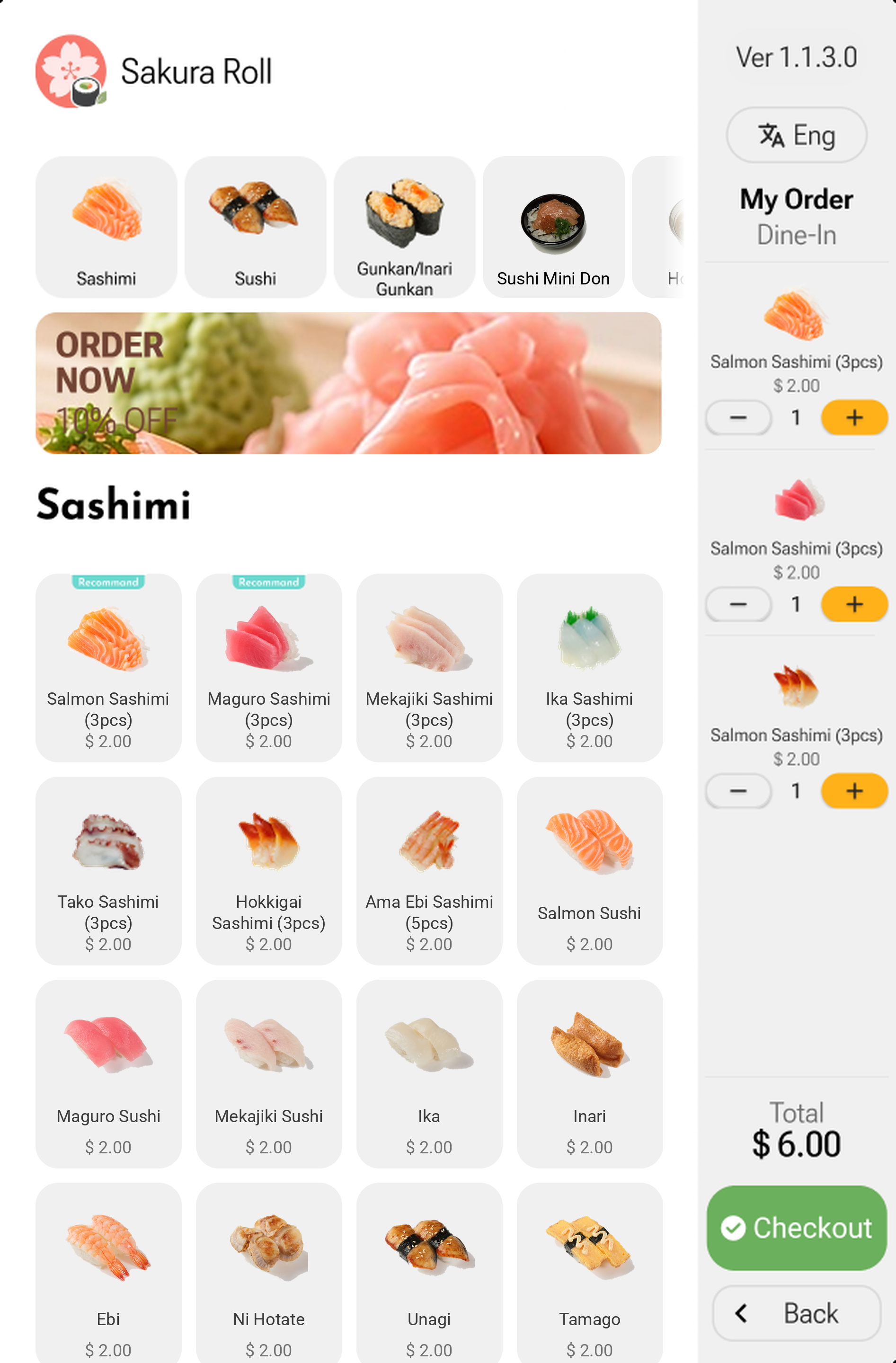
Self-service, done simply.
Photo categories
Guests find the right section at a glance.
Recommend tags
Point guests to the dishes you want to sell.
Live order panel
Every item with + and − to change the quantity.
Language toggle
Guests switch language in one tap.
Four steps, start to finish.
- 01
Pick a category
Big photo tiles across the top.
- 02
Add items
Tap a dish to add it to My Order.
- 03
Review
Change quantities right in the side panel.
- 04
Checkout and pay
Card, PayNow, WeChat Pay or Alipay.
One menu. Every screen.
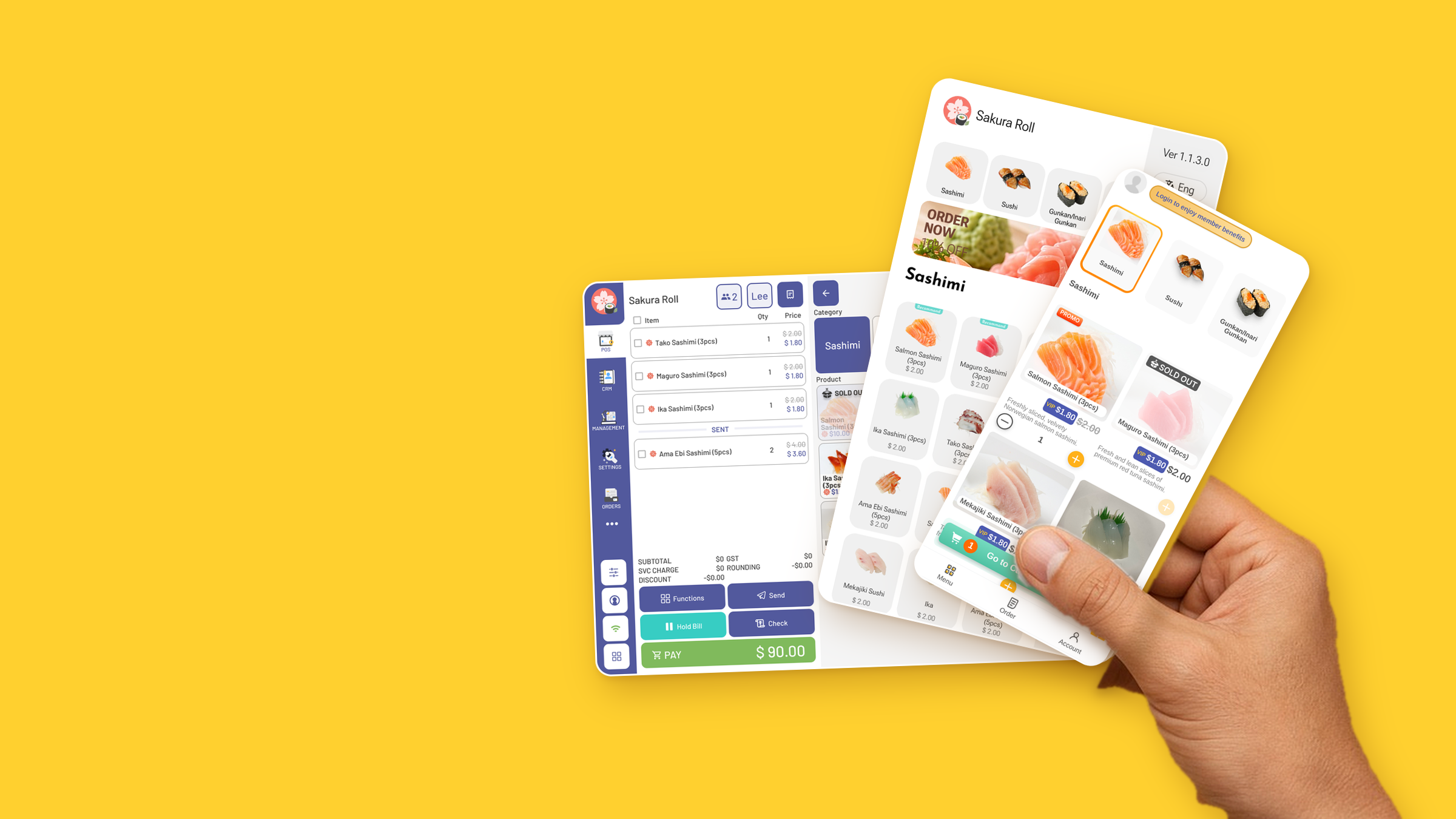
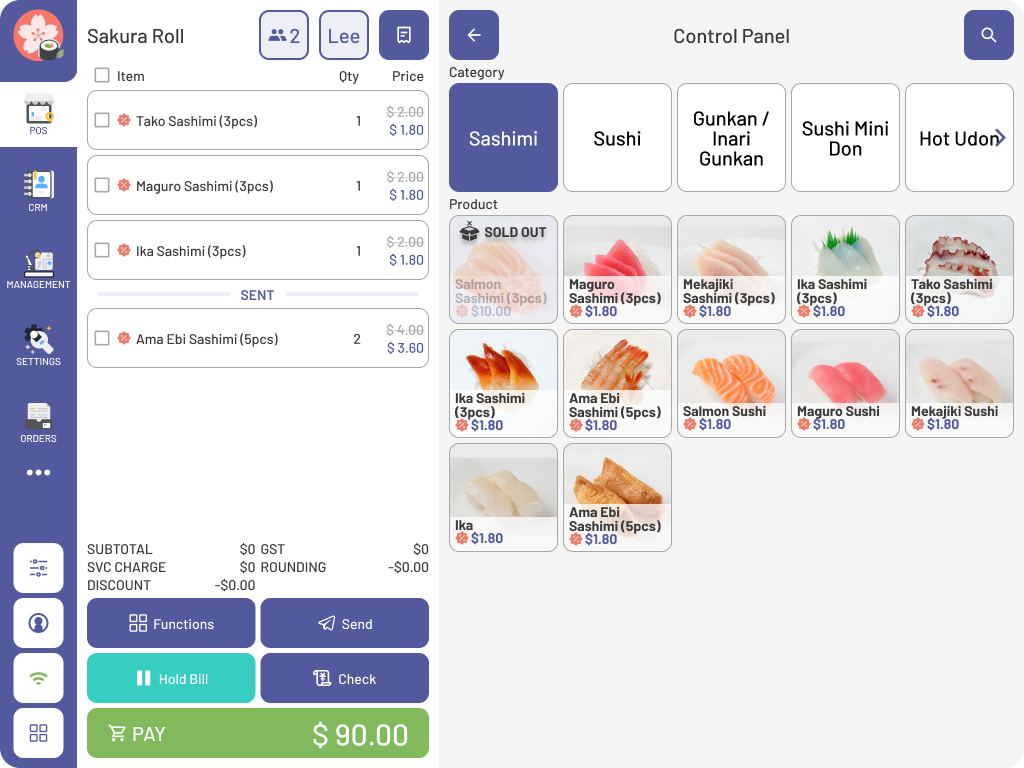
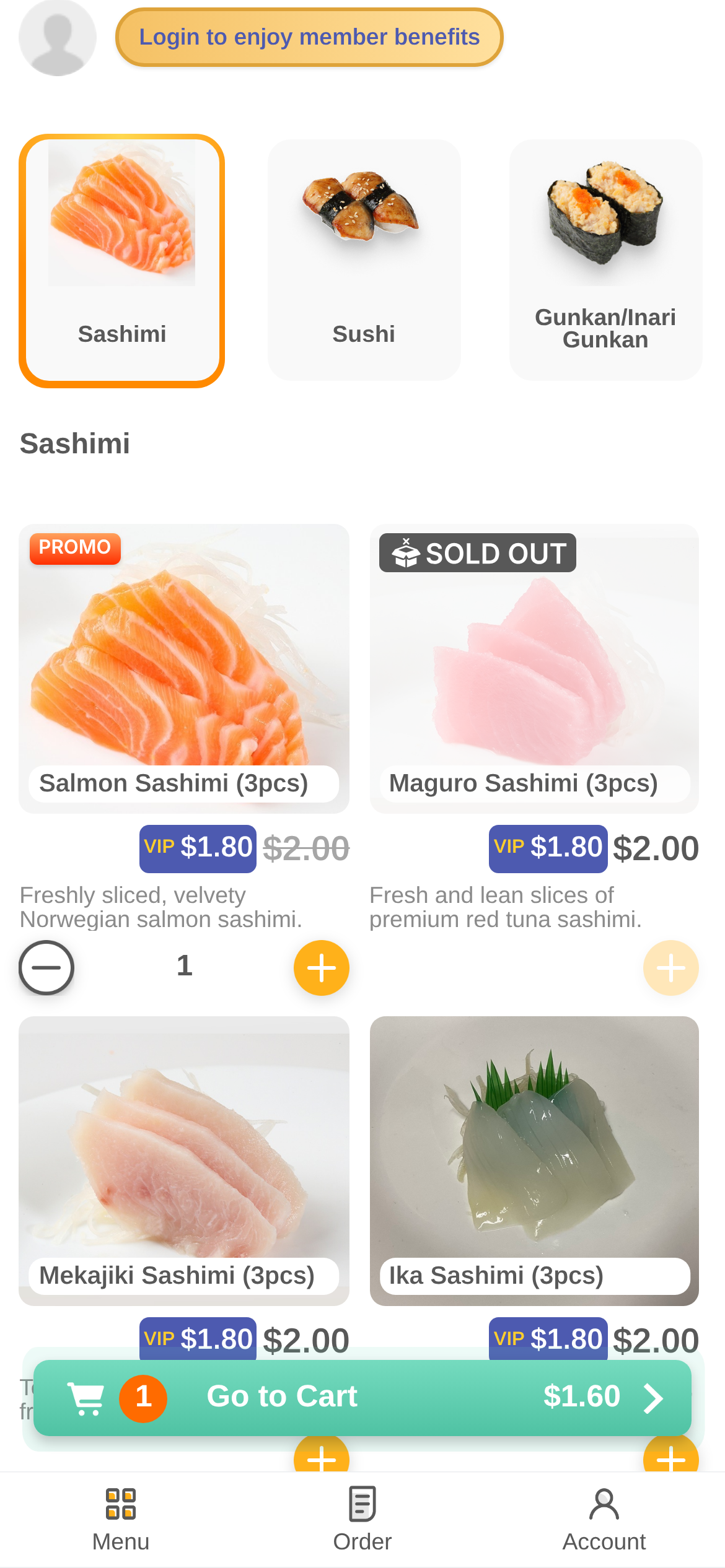
The Sakura Roll (iSushi demo) menu runs on the counter, the kiosk and the guest's phone — same categories, same dishes.
Connects with the XPOS ecosystem.
One menu, one member list, one set of orders — shared across every product.
Questions.
Where do kiosk orders go?
Straight into the POS and to the kitchen display.
Which payments can guests use?
Card, PayNow, WeChat Pay and Alipay — switch methods on or off per outlet.
Can guests change the language?
Yes, with the language toggle at the top of the order panel.
Is it the same menu as the POS?
Yes. One menu powers the POS, kiosk and QR ordering, as in the Sakura Roll example above.
See it work. Try XPOS now.
Tap through the POS, the kiosk and QR ordering right in your browser. No sign-up.
Try it nowFree live demo · No credit card